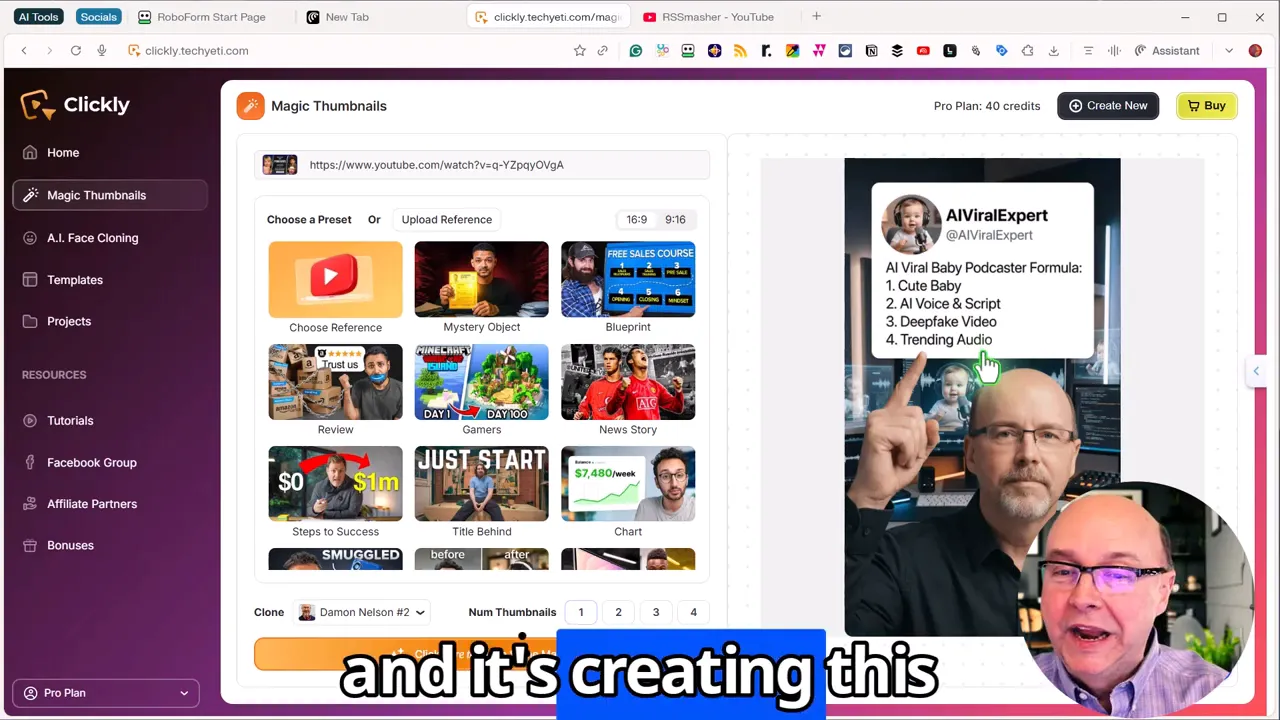
Clickly promises to turn boring thumbnails into scroll-stopping images using AI face cloning, built-in templates, and a one-click workflow that pulls content straight from YouTube links. For a front-end price of around $47, it packs features that let you generate multiple formats at once, clone your face into professional templates, and even revive old low-performing videos with fresh designs.
What Clickly does at a glance
At its core, Clickly automates thumbnail creation by analyzing a video (via a YouTube link or pasted transcript), extracting useful text and visual cues, and placing your face into ready-made templates. The result: thumbnails in both landscape (16:9) and vertical (9:16) formats suitable for YouTube, TikTok, LinkedIn, Reddit, and more.
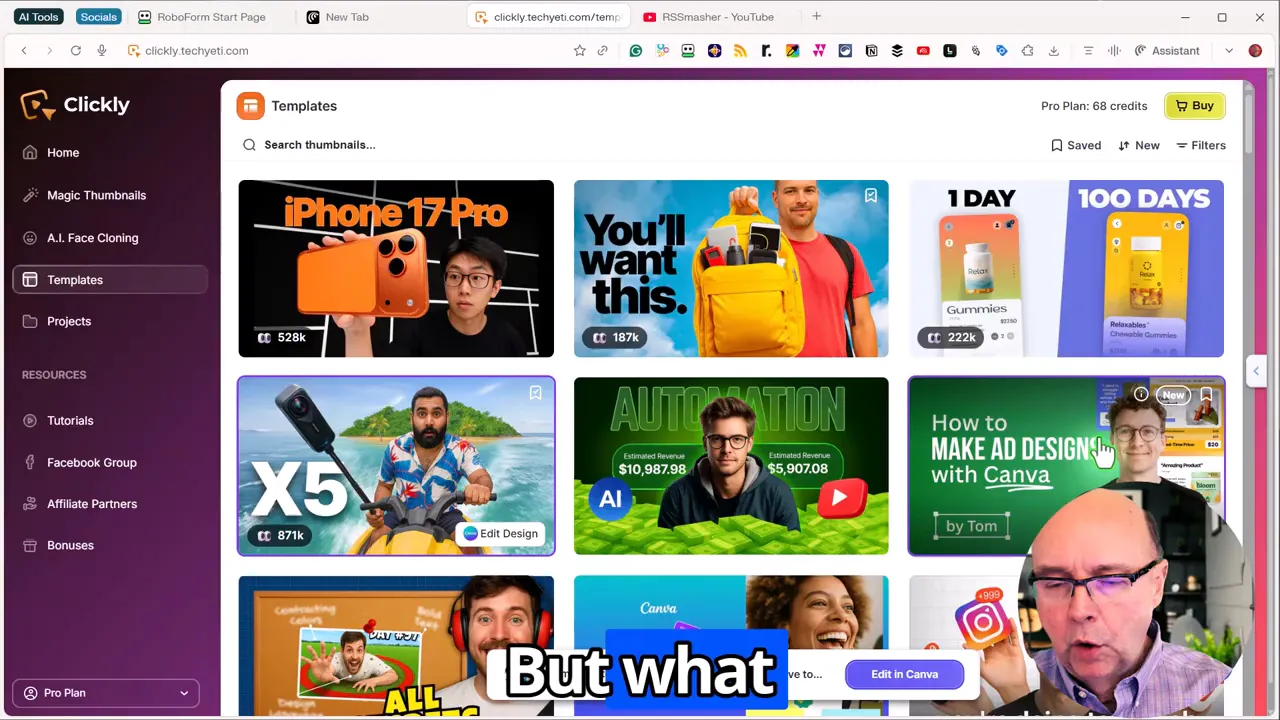
Key features worth highlighting
- Magic Thumbnails: Templates that auto-populate with extracted transcript phrases and replace placeholder characters with your face.
- AI Face Cloning: Upload a headshot or use a previously created clone to maintain a consistent on-screen persona across thumbnails.
- Multi-format generation: Create 16:9 and 9:16 images simultaneously so the same piece of content can be repurposed across platforms.
- Built-in editor: Edit text overlays directly in the app, including removing or swapping out auto-generated text without opening another tool.
- Template library + Canva integration: Choose from presets and optionally open designs in Canva for additional customization.
How the workflow actually looks (step-by-step)
The working process is straightforward and designed to be fast. Here is a practical walkthrough of the typical flow.
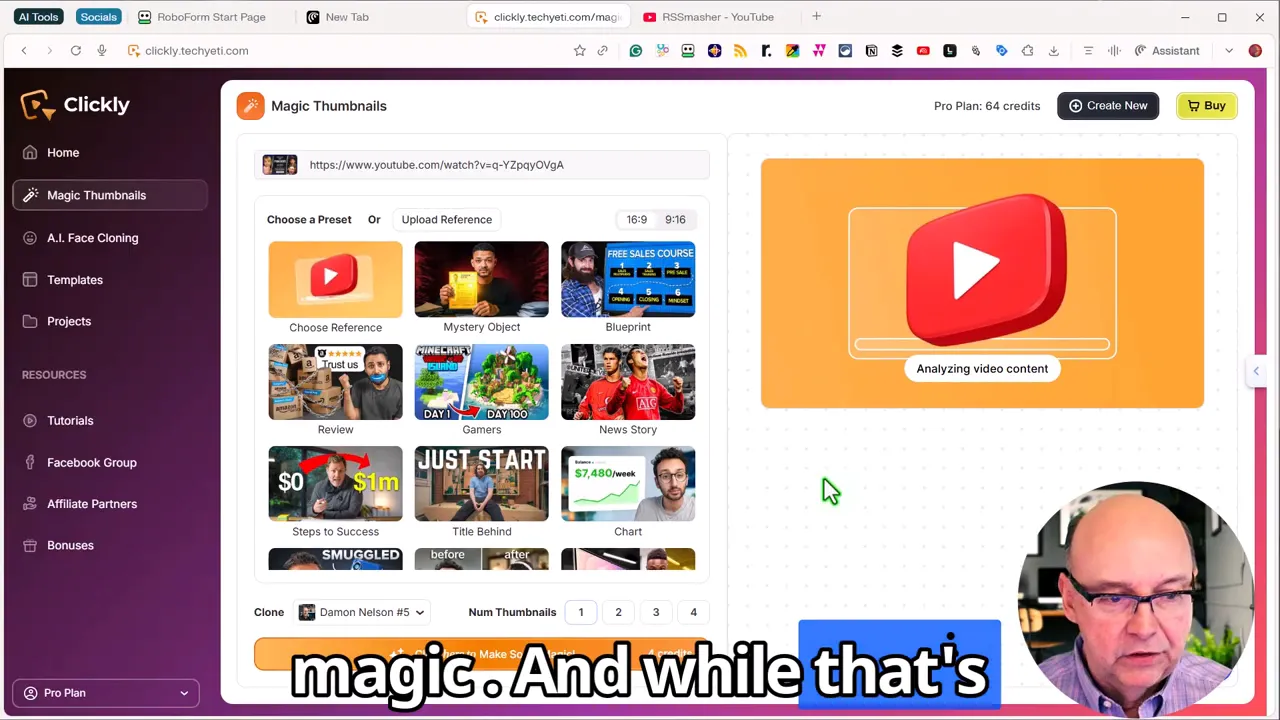
- Paste the YouTube link — Clickly pulls the transcript and analyzes the video to find strong headline-worthy snippets and key visuals.
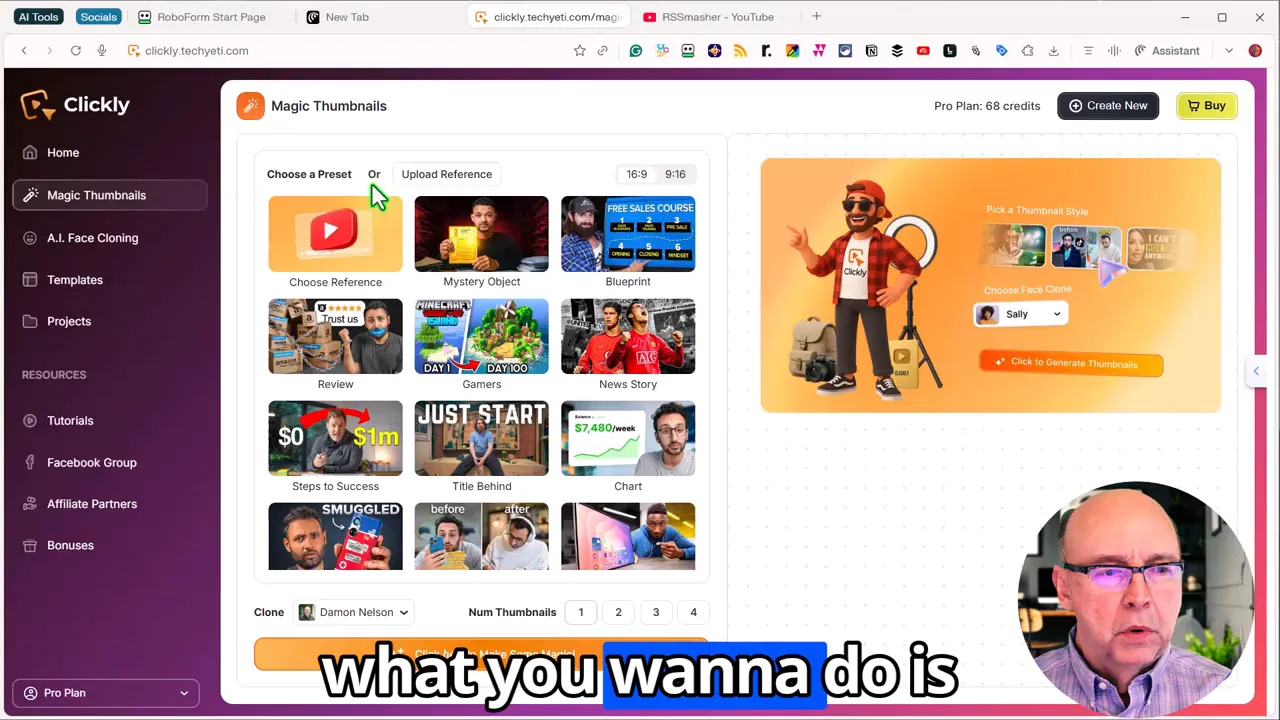
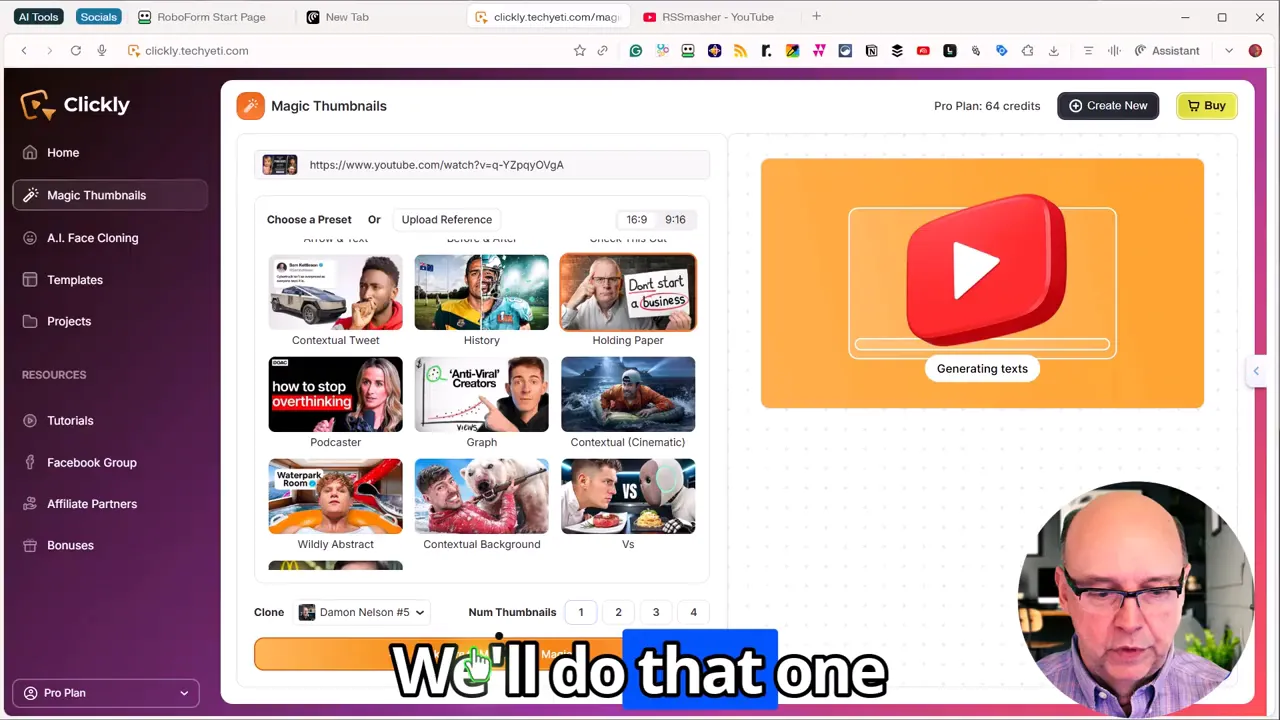
- Pick a preset — Choose from several template styles or upload a reference theme to match your brand.
- Upload or select your AI face clone — You can add a recent headshot or use a previously created clone for consistency. Close-up faces from chest up work best.
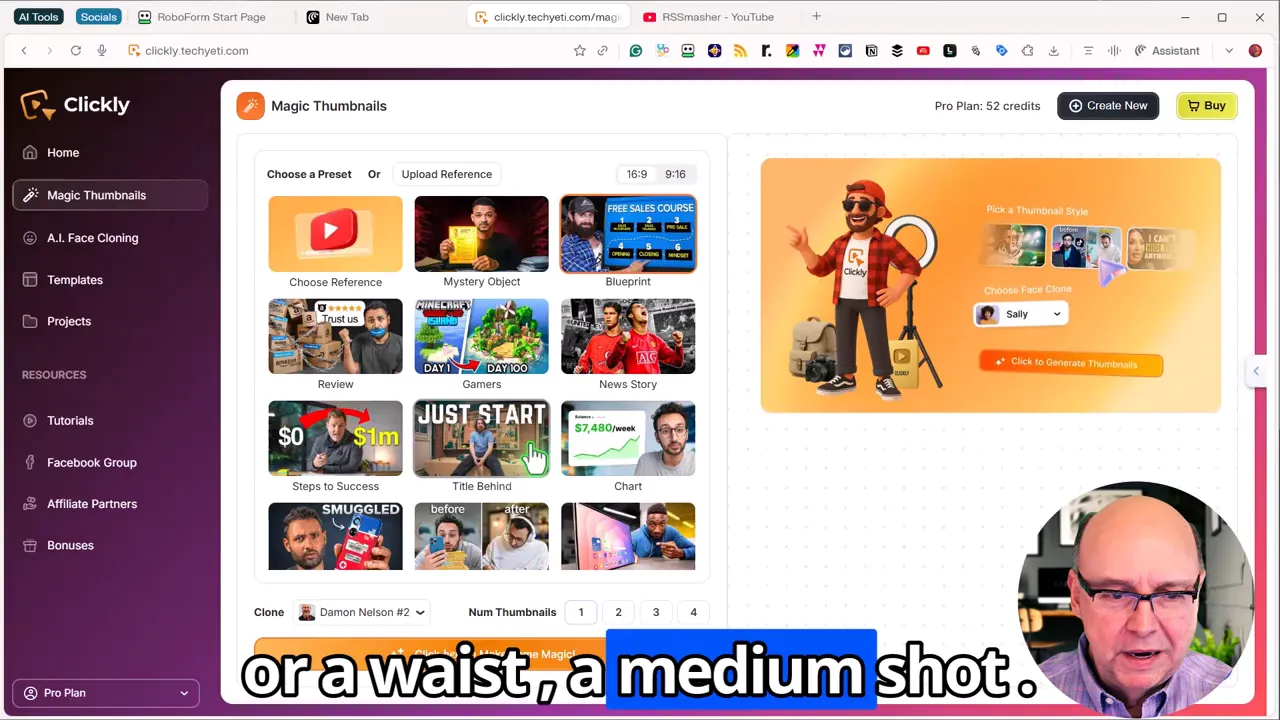
- Choose formats — Generate both landscape and vertical versions (16:9 and 9:16) in one pass so you can post to multiple platforms.
- Use credits to generate images — Each image uses credits tracked inside the app; buying more is a single-click action.
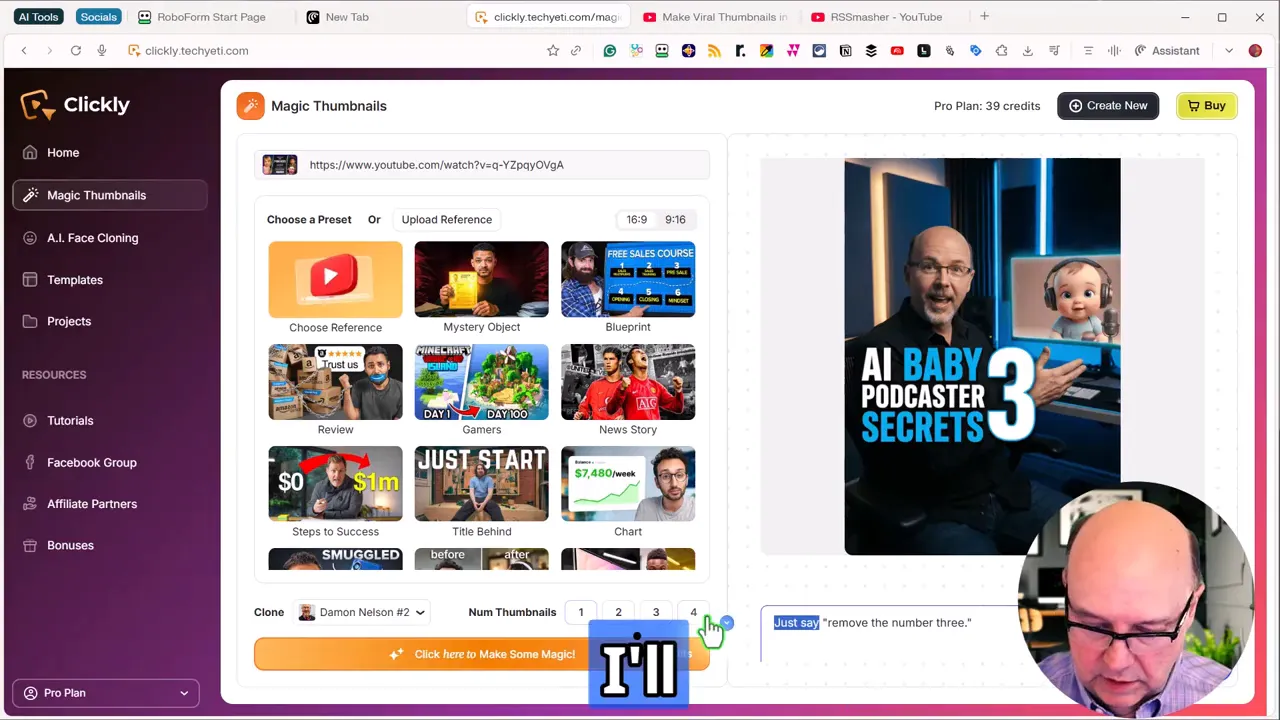
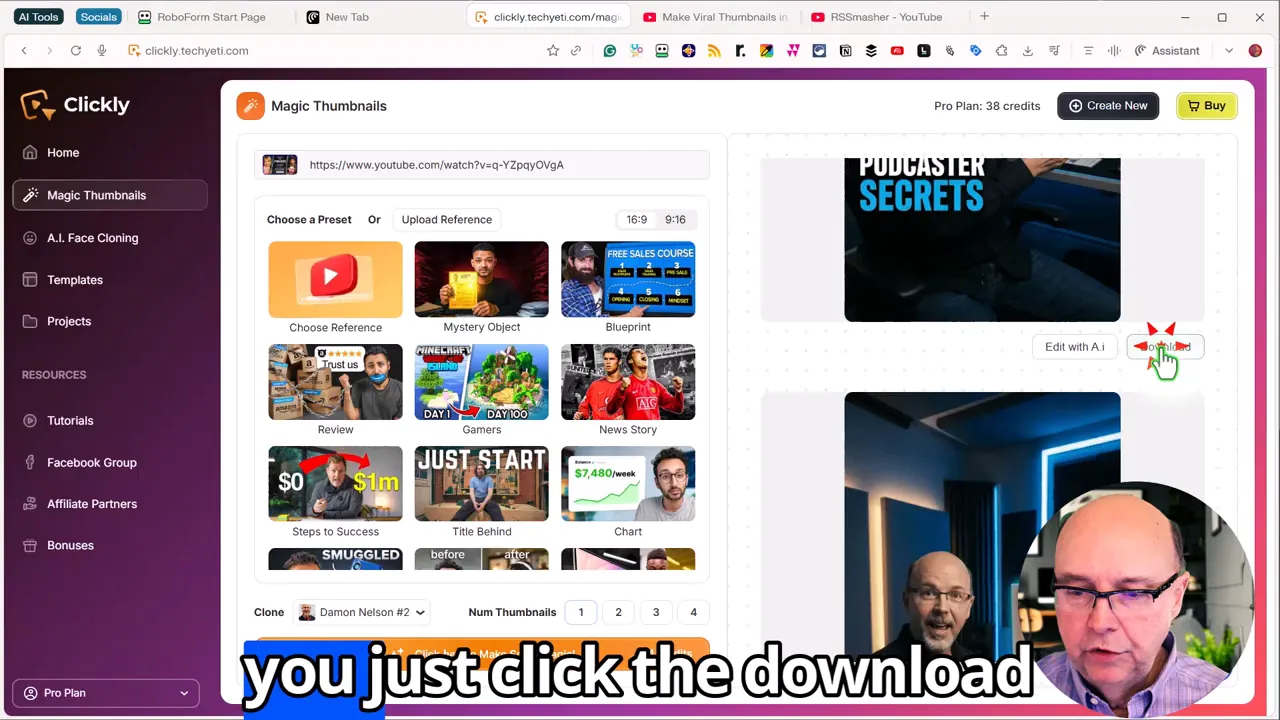
- Edit text and elements — Use the internal AI editor to remove unwanted numbers, tweak wording, or change callouts without leaving Clickly.
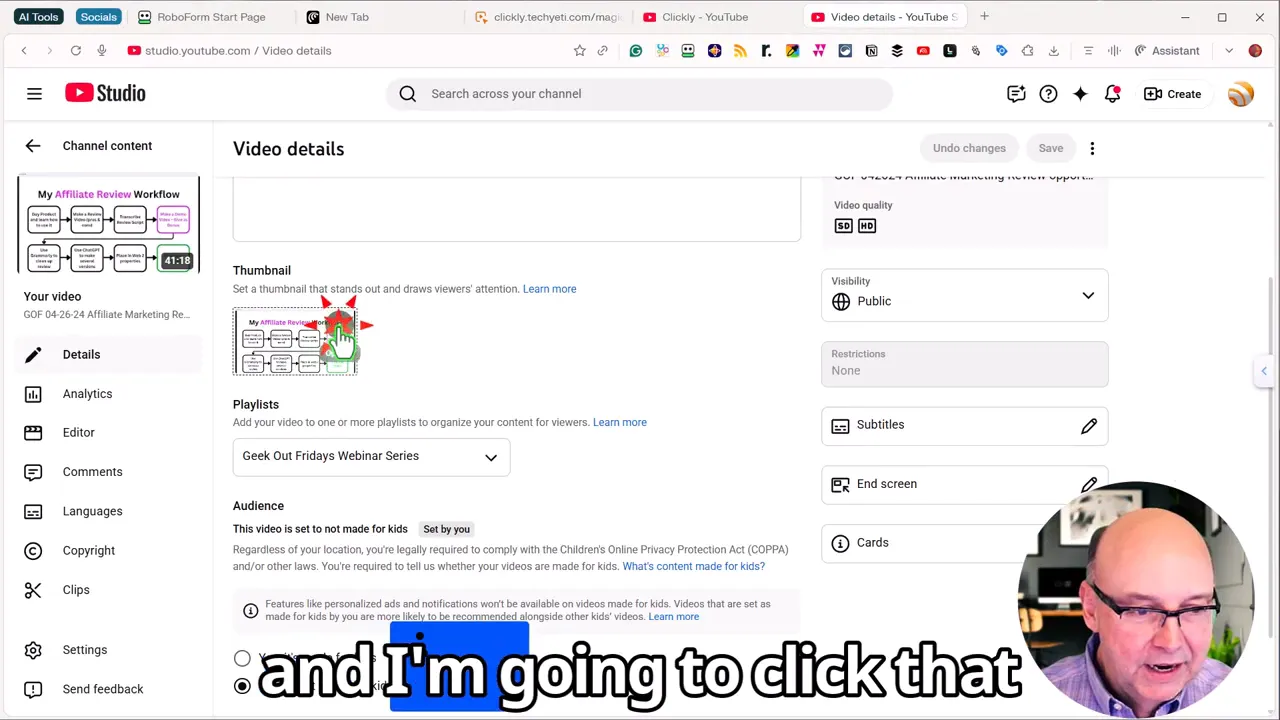
- Download and upload — Download the finished thumbnail and change it on your existing video to test performance uplift.
Reviving old videos: a simple growth hack
One of the most practical uses is the "revival strategy." Find an older video with an underperforming thumbnail, copy its YouTube link into Clickly, generate a fresh thumbnail (or several), and swap the image on the original video.
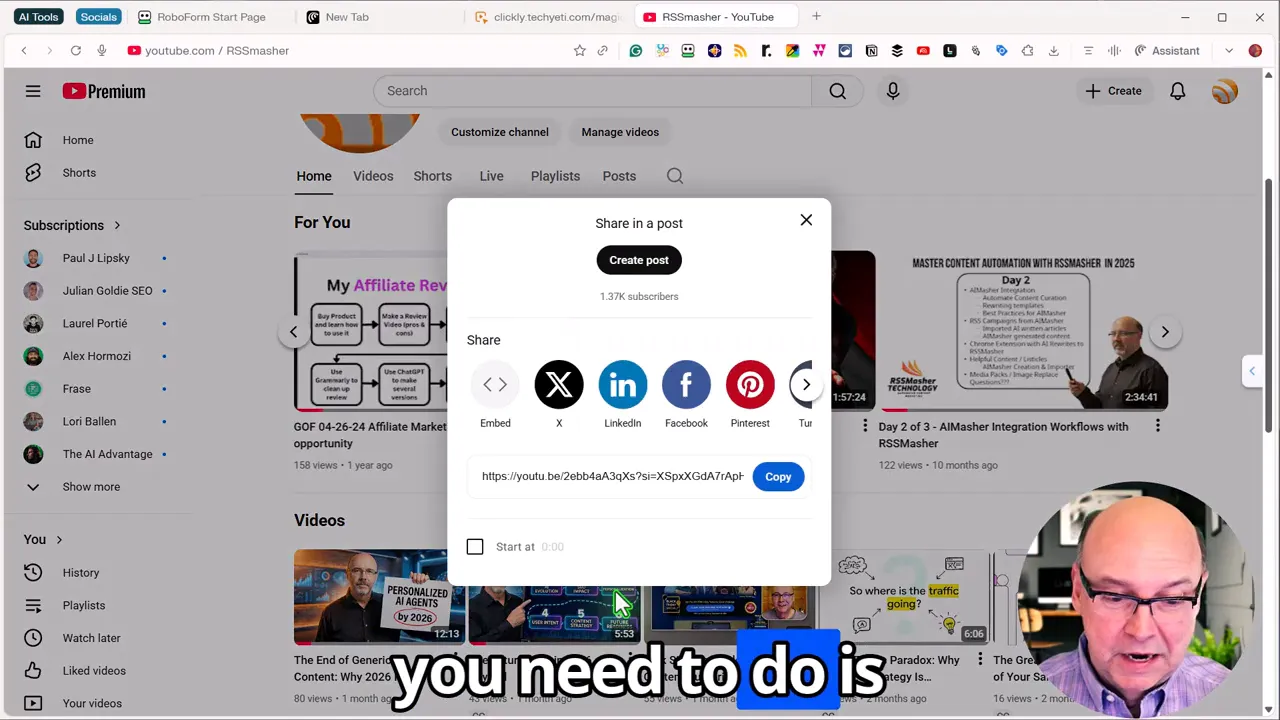
This is a low-effort way to increase clicks and watch time without recreating content. The process can be repeated across your library to squeeze more value from existing videos—especially useful if you have evergreen topics that only need a better thumbnail to surface again.
Design tips that matter
- Use a close-up face: Thumbnails with chest-up or tighter headshots perform better than full-body images. Audiences respond to facial expressions and eye direction.
- Make text bold and short: Clickly auto-generates text overlays, but keep them concise and readable on mobile.
- Add simple visuals that pop: Arrows, billboard signs, and contrasty backgrounds help thumbnails stand out in fast scrolls.
- Keep branding consistent: Create a Blueprint template by cloning a face and using the same layout across videos to build recognition.
Editing inside Clickly: quick fixes
Need to remove a stray number or change the headline? Clickly’s AI editor allows you to select an element, request a change, and regenerate the edit. This is handy when the tool’s first pass uses a transcript snippet that doesn’t make sense as a thumbnail caption.
Pricing and value
The front-end price discussed was around $47. For creators who publish regularly and repurpose content across platforms, this can be an economical investment: creating multiple thumbnails per video and revamping old posts scales the value quickly.
Pros and cons
- Pros
- Fast thumbnail generation from YouTube links
- AI face cloning helps keep a consistent look
- Generates multi-format outputs in one go
- Built-in editing avoids bouncing between tools
- Cons
- Some auto-generated text may need manual tweaking
- Credit system for generates may require monitoring for heavier use
- Templates can be similar—branding requires customizing defaults
When Clickly makes sense
Consider Clickly if you:
- Publish video content regularly and need consistent, professional thumbnails.
- Repurpose content across platforms and want both landscape and vertical images without extra work.
- Have a backlog of older videos that could benefit from refreshed thumbnails.
Final verdict
Clickly delivers on its promise to generate attractive, platform-ready thumbnails with minimal friction. The AI face cloning and multi-format generation are particularly useful for creators who want consistent branding and multi-channel repurposing. At the reported price point, it is a solid value—especially when used as part of a thumbnail refresh strategy for older videos. For anyone serious about increasing click-throughs and saving time on thumbnail design, Clickly is worth trying.
Try it for a few videos, test different templates and headlines, and track how the new images affect click-through rate. Small thumbnail improvements can compound quickly across a channel.
Want to Rewrite URLs with AI |
|
Check out this New Chrome Extension in AIMasher |
| Watch this Video |