Why rethink thumbnail creation
Thumbnails are the single most important asset for social posts and articles. They need to be bold, on-brand, and written to tease the content—not summarize it. Too many tools make thumbnails expensive, rigid, or stylistically limiting. The solution is a simple, repeatable workflow that separates prompt composition from image generation.
Overview: a two-step prompt-first workflow
The process I use cuts out the guesswork and the wasted credits:
- Pick a style sheet (grab free templates from Canva or use a starter pack).
- Upload a character reference—your face or brand mascot so the image generator knows who to render.
- Paste your article or post copy so the tool can extract headline keywords and image text suggestions.
- Let the prompt builder create a clean, compliant prompt you then paste into an image generator like Flow or Gemini.
This approach prevents accidental copyright or trademark violations and gives consistently better results than iterating directly inside an image generator.
Step 1 — Grab a style sheet (Canva is great)
Start with a thumbnail style you like. Canva is full of free templates you can use as a stylesheet reference—download one as a JPEG and treat it as your visual guide.
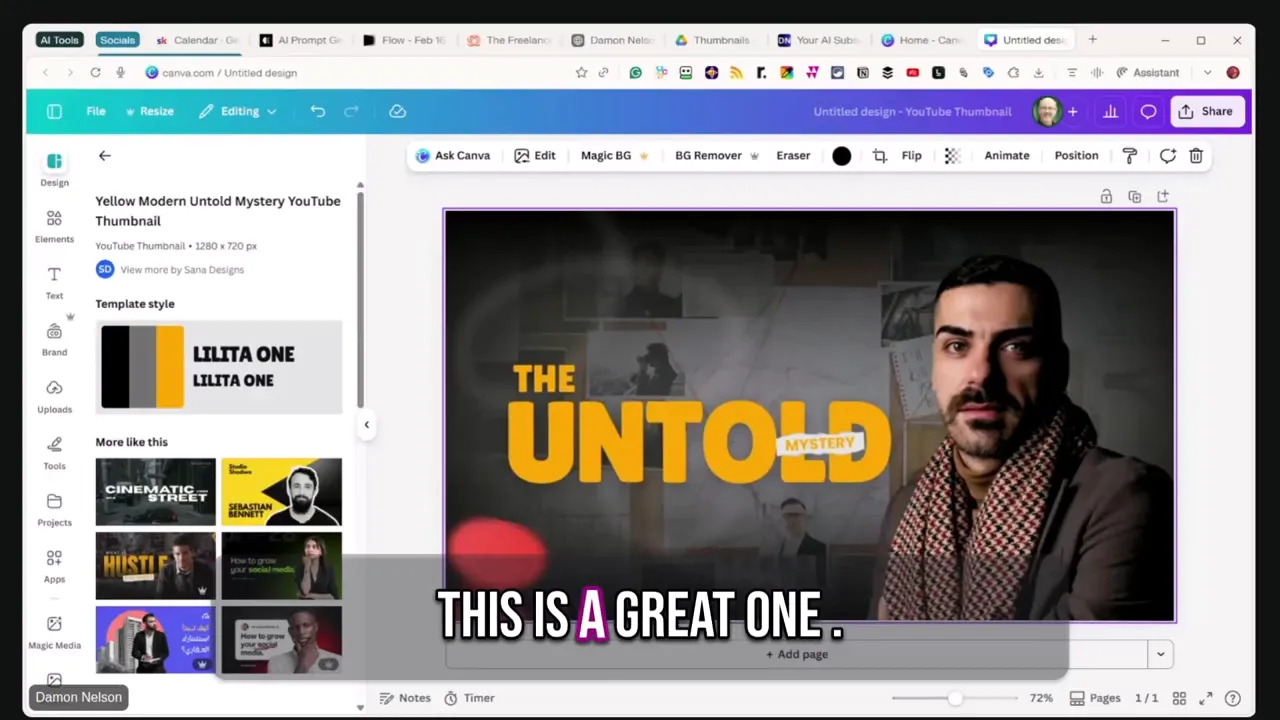
The stylesheet defines color, composition, text placement, and the overall vibe you want the AI to mimic. A 1280x720 JPEG works well for landscape thumbnails; portrait versions can use 1080x1920 or similar.
Step 2 — Pick a character reference
Upload a clear image of yourself or your on-screen persona. The prompt builder uses this to keep facial features, clothing, and posture consistent across different thumbnails. If you want the character on a whiteboard, in a sweater vest, or holding a mic—use that as your reference input.
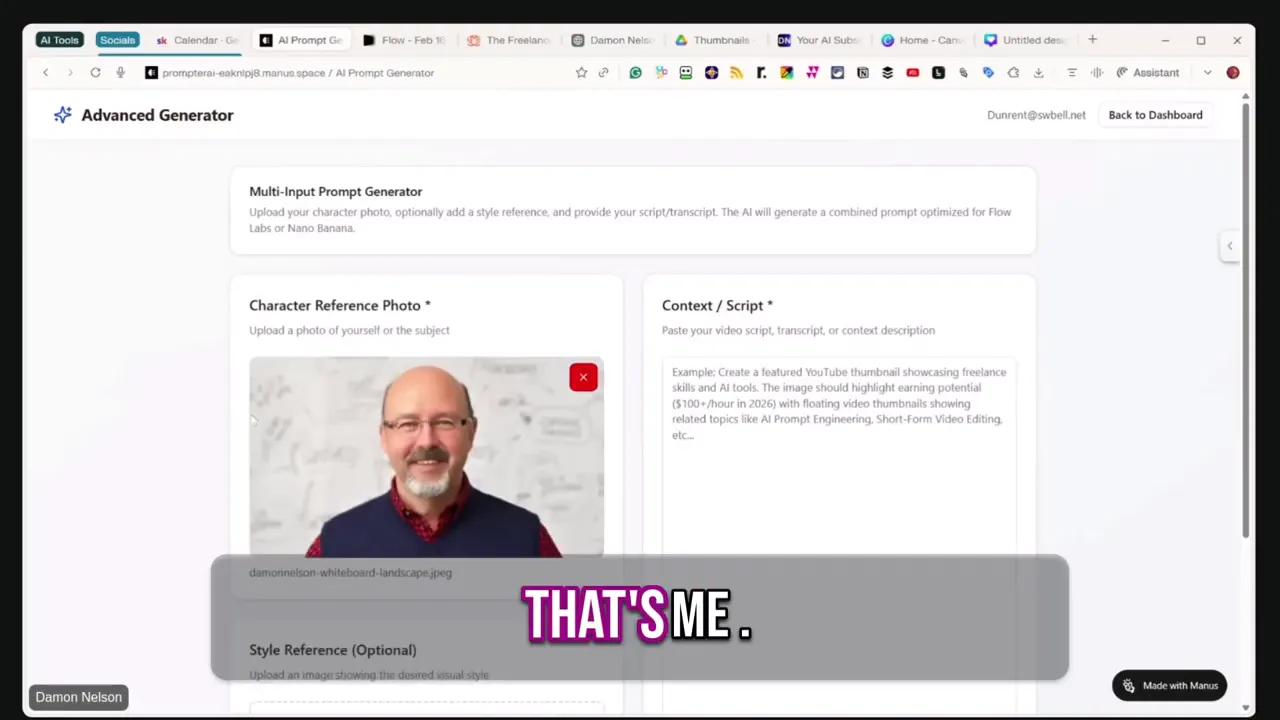
A consistent reference is the fastest way to build a recognizable visual brand across dozens of thumbnails.
Step 3 — Paste your article or copy
Drop the article text or the post copy into the prompt builder. It will scan your content and extract the right keywords, headline options, and teaser text that belongs on the thumbnail. This replaces that paralyzing moment of “what should the text say?”
Step 4 — Generate the combined prompt (the magic)
Use the advanced prompt generator to combine stylesheet, reference image, and content into a single, well-structured prompt. This prompt is engineered to be fed into Flow or another image generator with minimal modification.
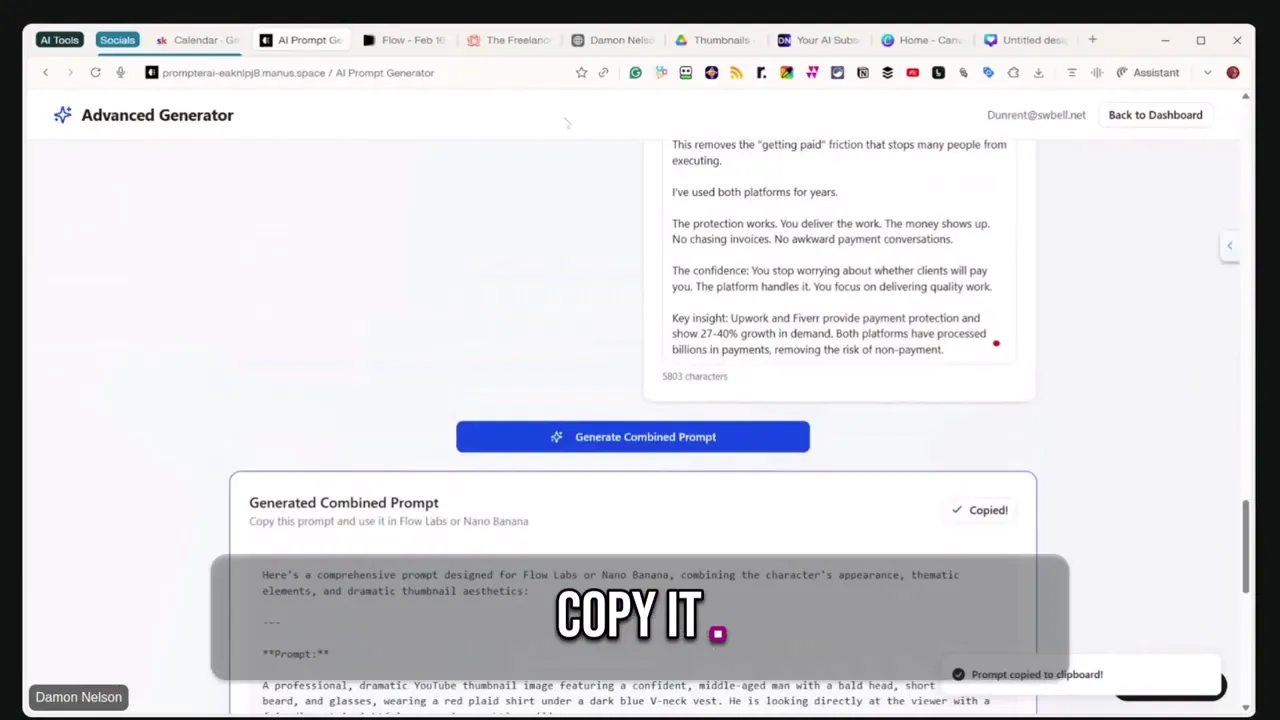
The benefits:
- Cleaner prompts that won’t accidentally trigger content policy or copyright flags.
- Automatically suggested headline text based on your article—no more guessing.
- Reusable inputs so you can swap style sheets while keeping the same character and content context.
Step 5 — Paste into Flow and generate
Paste the combined prompt into Flow and include your character reference again in the image generator. Request multiple images at once—Flow can produce four landscape frames in one pass which is perfect for quick A/B testing.
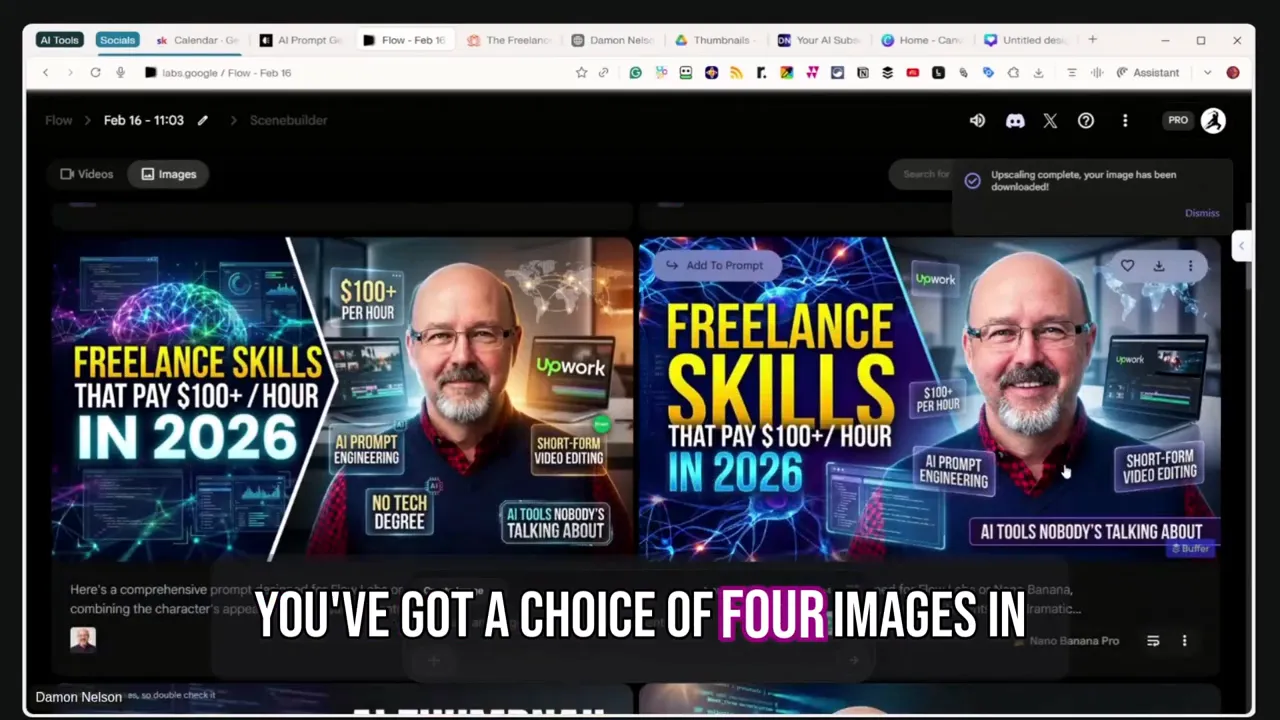
Try both landscape and portrait output. Landscape is ideal for blog headers and YouTube, while portrait is perfect for social shorts and vertical ads.
Practical example: from blog post to thumbnail
I recently turned a blog post about high-paid freelance skills into several thumbnails in under 20 minutes. The stylesheet came from Canva, the character reference was my typical sweater-vest photo, and the article copy provided the headline suggestions. Flow returned four strong options; one of them became the primary thumbnail and another was repurposed for a vertical social cut.
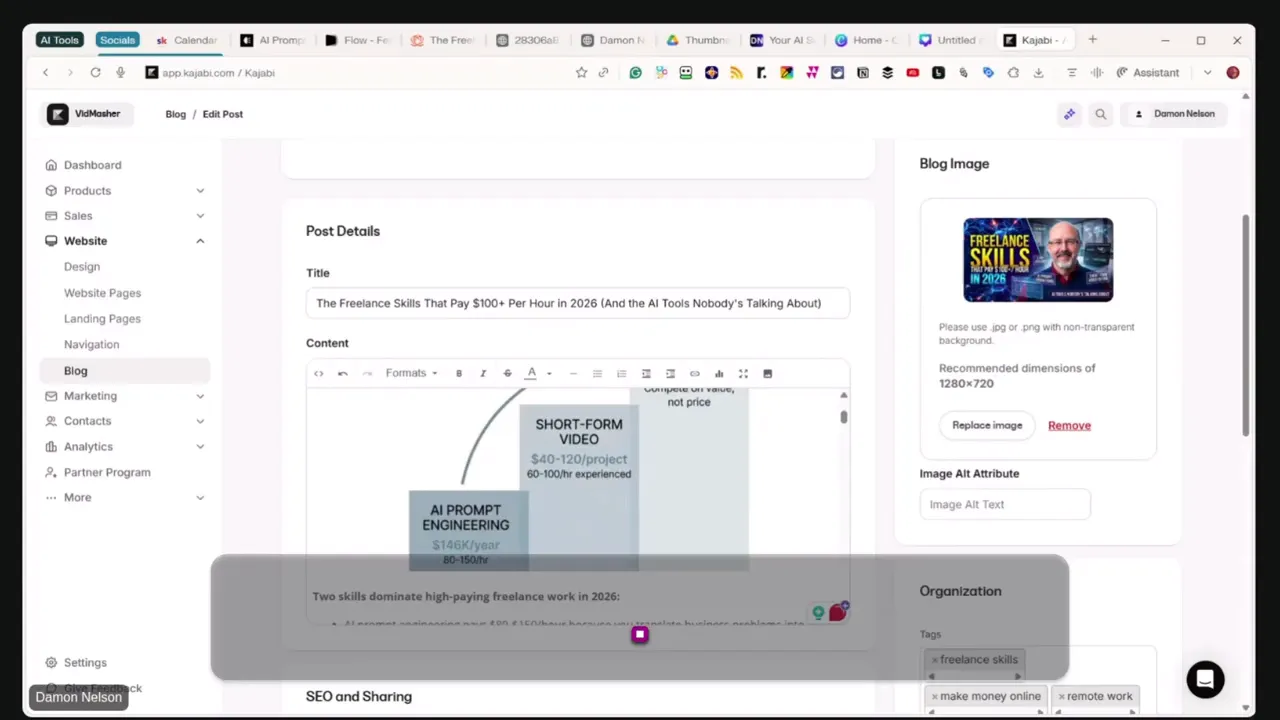
Replacing the image inside a CMS or course platform is as simple as uploading the best one and previewing it in the page builder. The image that looks exciting on the feed is the one that will get clicks—infographics are informative but often less scroll-stopping.
Troubleshooting and tips
- If Flow rejects a term, it’s often a copyright or trademark concern. Re-run the prompt or swap the offending word—sometimes two runs clear the issue.
- If the likeness is off, adjust the reference photo. The generator relies heavily on the input image.
- Switch styles quickly by keeping the combined prompt and swapping only the stylesheet image. It’s the fastest way to create dozens of variations.
- Use multiple outputs (landscape and portrait) so the same content can be promoted across feed, stories, and blog headers.
Advanced idea: themed character variants
Want to make thumbnails more playful? Use alternate character references (a pirate avatar, a podcaster outfit, a suit) to match specific campaigns. Save each combined prompt and reuse it with different stylesheets for a consistent campaign look without rebuilding prompts from scratch.
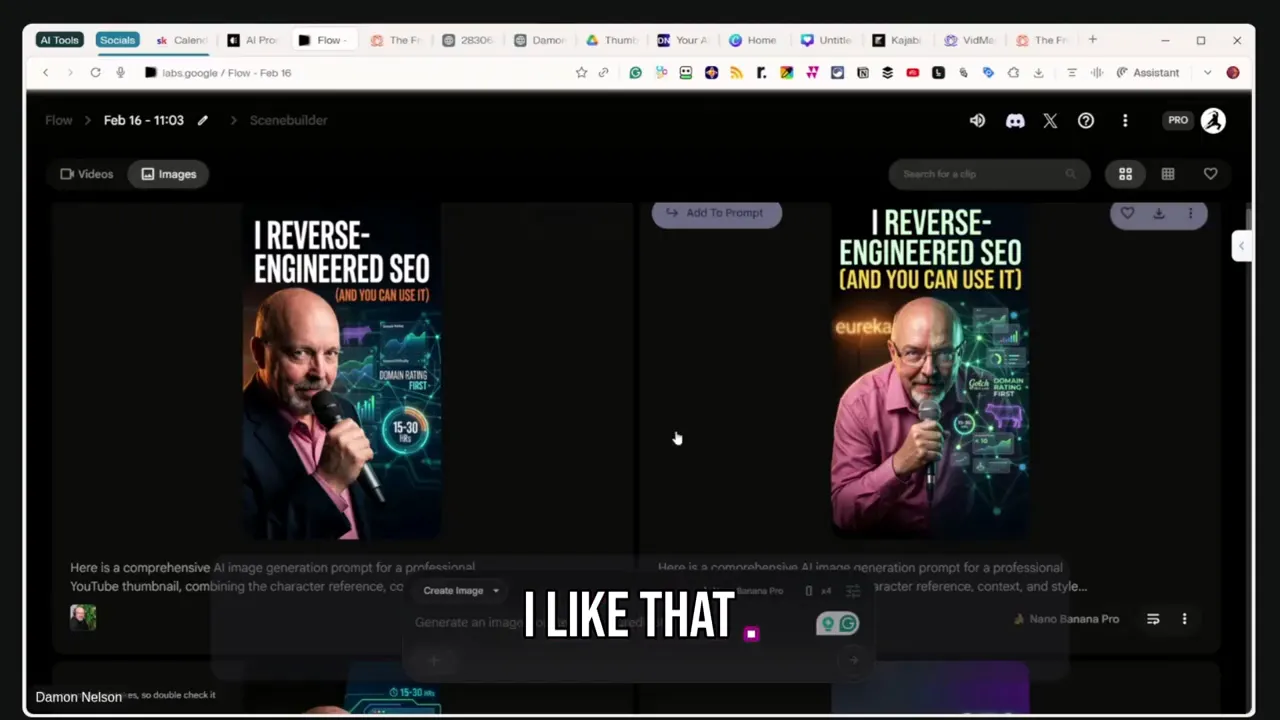
This is how you keep momentum: reuse and remix rather than starting from zero for each new piece of content.
Why this saves time and money
Here’s the simple math: composing prompts externally removes the trial-and-error inside paid image tools. That means fewer credit burns and fewer subscription headaches. It also gives creative control back to the creator—your style, your character, your text.
"Move from 'thumbnail creation is expensive and slow' to 'I control my style, my speed, and my budget.'"
Quick checklist before you generate
- Download a stylesheet from Canva (or use a starter pack).
- Choose a clean character reference photo.
- Paste your article/post text into the advanced prompt builder.
- Generate the combined prompt and copy it.
- Paste into Flow, select landscape or portrait, and generate multiple images.
- Download the best ones and upload to your CMS or social scheduler.
Final notes
Expect to spend a little time dialing in your personal workflow. After that initial investment, you should be able to produce dozens of on-brand thumbnails per hour without subscriptions or per-image costs eating your budget. Keep a small library of stylesheets and character references—then mix and match for campaigns that scale.
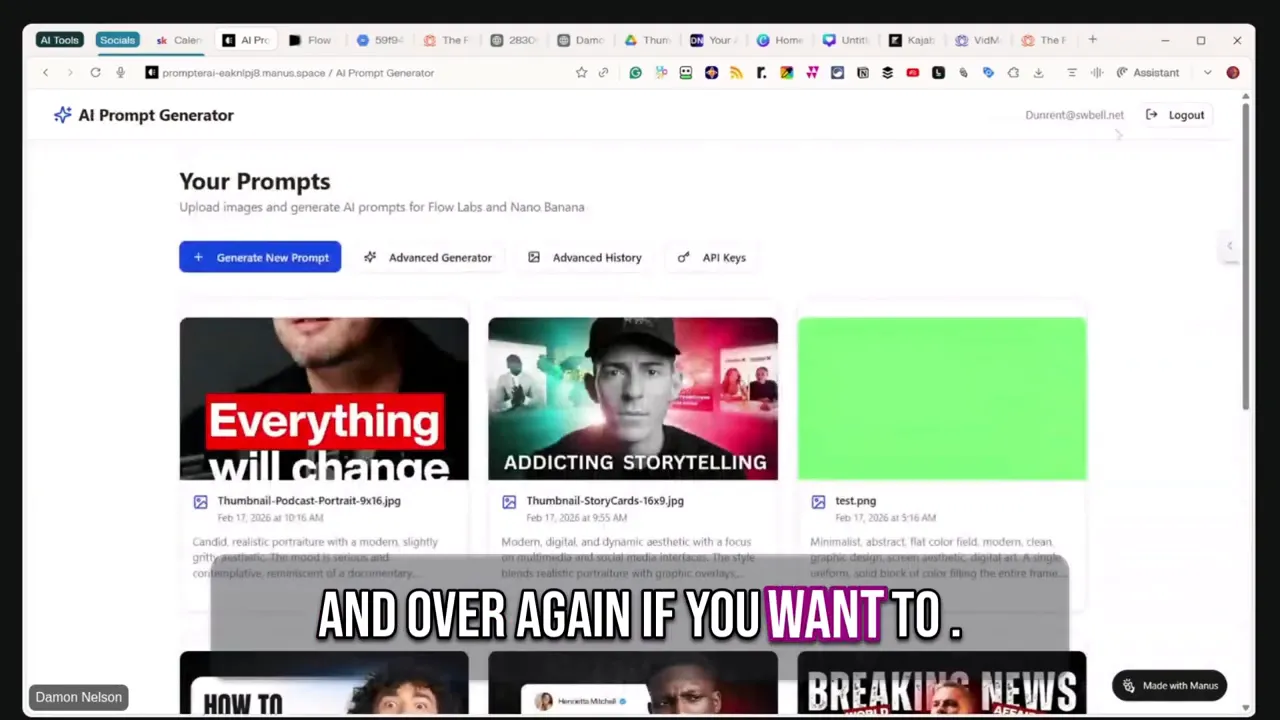
If you try this method, start with three style sheets and two reference images. Run six combined prompts and compare results. You will quickly see which styles Flow prefers and which character inputs create the strongest likeness.
Want to Rewrite URLs with AI |
|
Check out this New Chrome Extension in AIMasher |
| Watch this Video |

